Solution Templates
Solution Templates represent templates created by scenarios. When a scenario is uploaded, configuration files are extracted, displaying the name, description, and versions of the scenario. All available functional scenario elements can be configured with default mappings. The solutions you create will follow the structural patterns defined by the Solution Templates. This allows Solution Hub to follow the procedures built into the scenarios, as represented by the process models and channels created in Orchestra Designer.
Creation
To create a Solution Template, follow these steps:
-
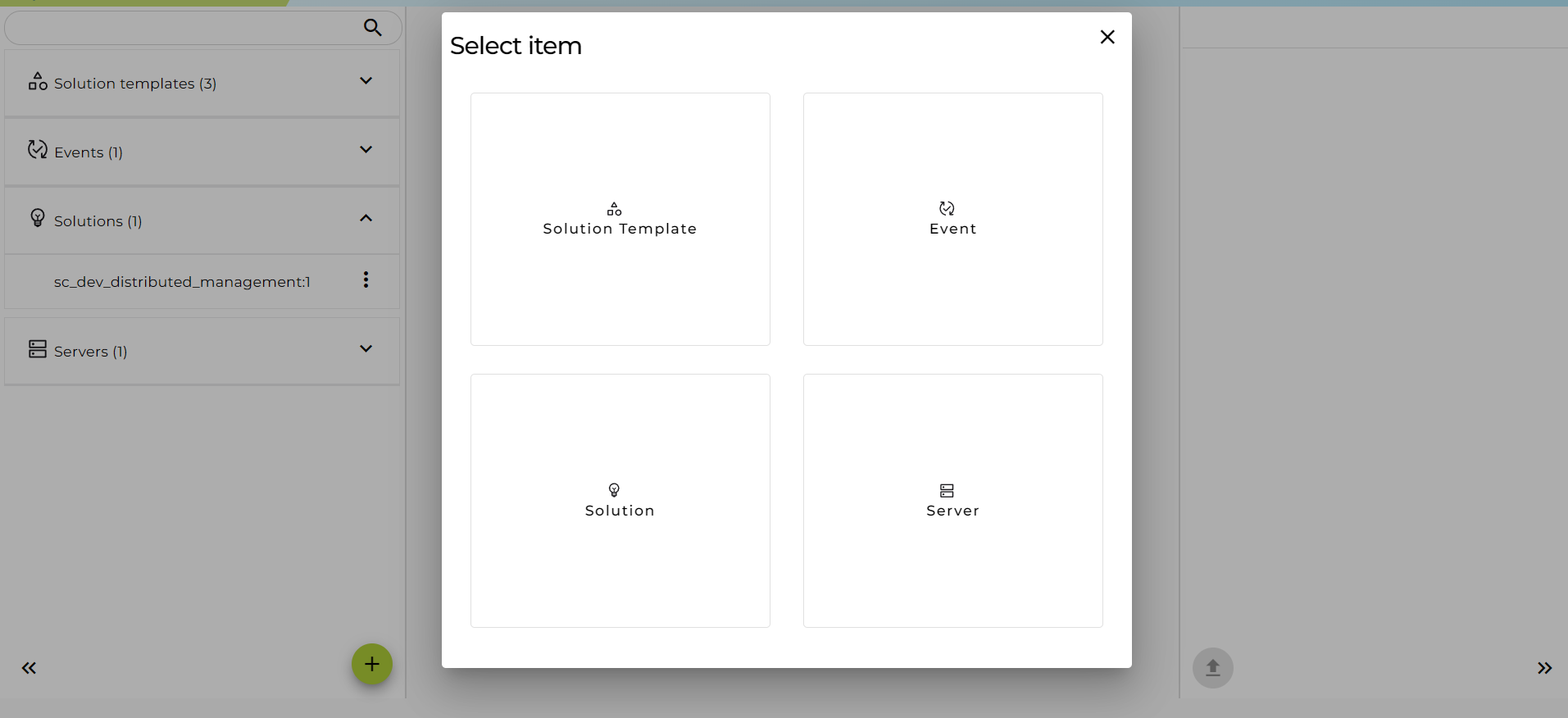
Click on the (+) button and select "Solution Template".
-
Select a scenario (
.pscfile) created and exported by the Orchestra Designer. Then click "Upload".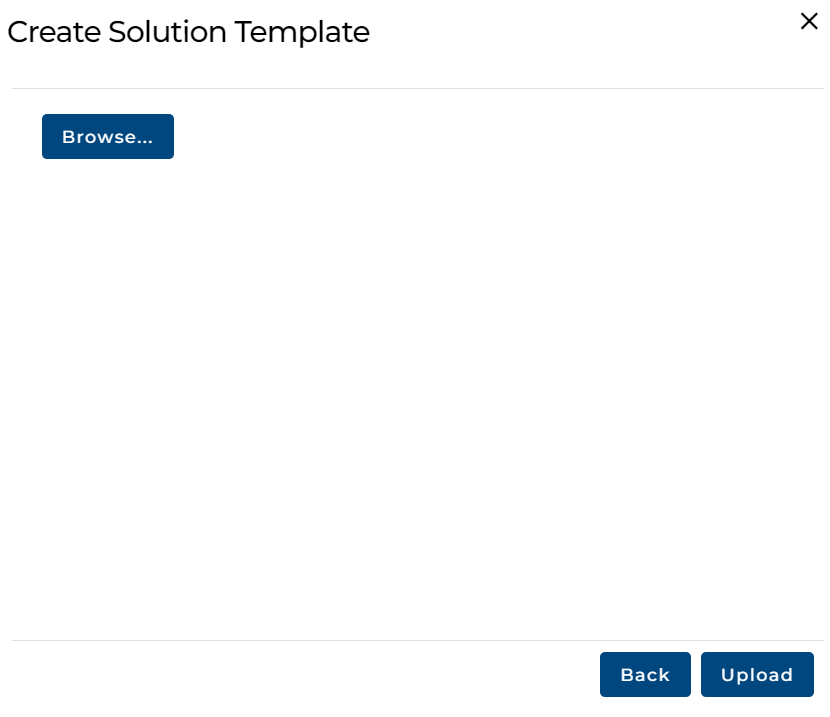
-
The new solution template will be displayed in the navigation sidebar under the "Solution Templates" section.
IO Assignment
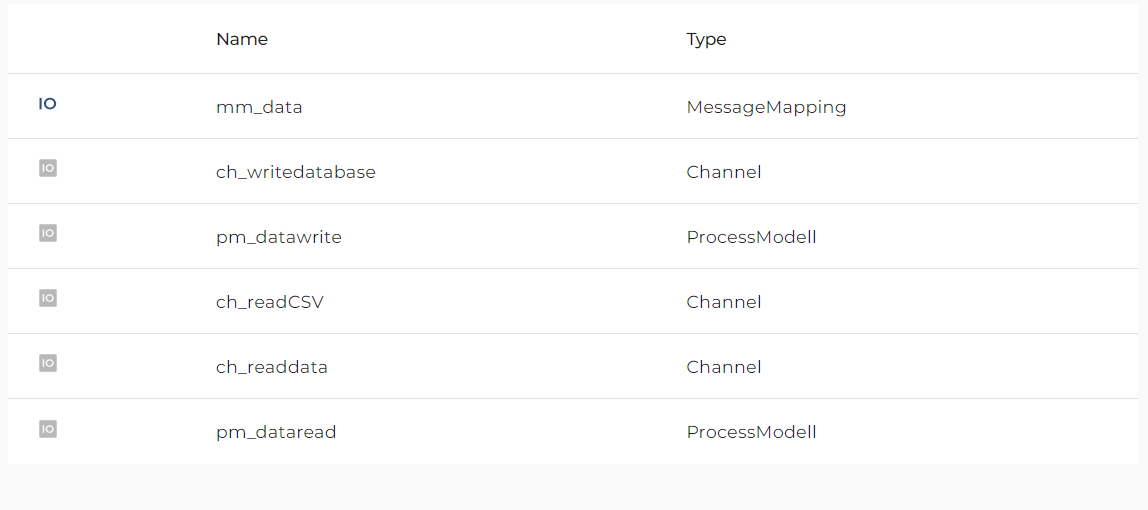
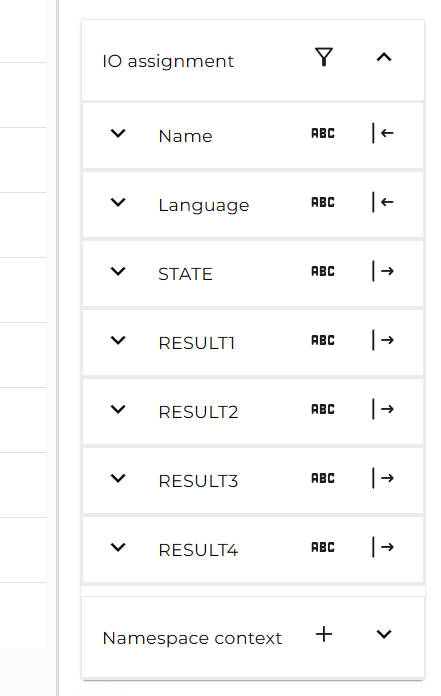
You can use the IO assignment panel to assign values to the input and output parameters of each functional scenario element (Mappings, Channels, Process models) — called "Callable elements".
The assignments in the solution template will be used as default assignments for its solutions.
To use the IO assignment panel, follow these steps:
-
When you open a solution template, you will see a list of callable elements like this:
-
Click the "IO assignment" icon. The IO assignment panel will open on the right sidebar:
-
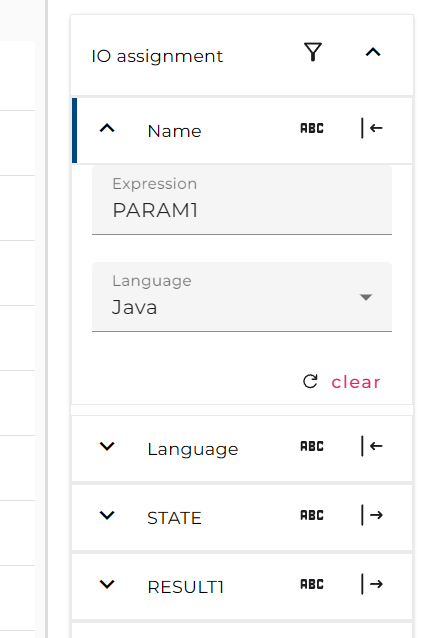
Assign values to each parameter by expanding the parameter panel and entering an "Expression" for the selected "Language".
-
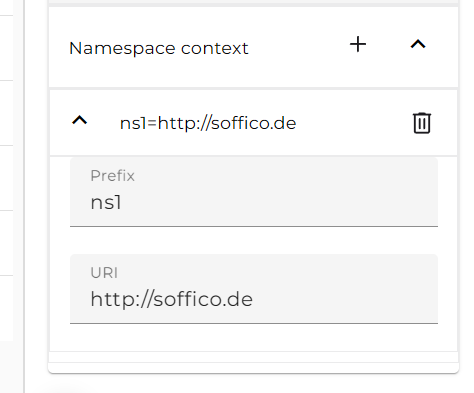
Manage the namespace context for XPath expressions using the "Namespace context" panel:
- Click the add icon to create a new namespace prefix.
- Click the delete icon to remove a namespace prefix.